Quick Google Search

How To View Facebook Locked Profile Picture ?

How To View Facebook Private Profile Photo In Large Size ?

facebook private pic
Sometime you want to see clear image of someone on facebook who might not be your friend but his/her privacy setting stop you from doing this. In this tutorial i will teach you to view facebook private  or locked profile picture in large size with very simple trick.

How To View Facebook Locked Profile Picture ?

1. Open the facebook profile of person whose profile picture is locked or is set to private.
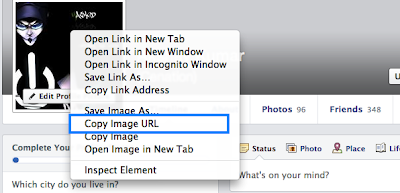
2. Right click on the profile picture and click on Copy Image Url as shown in image below.
 Facebook Private Profile Photo

3. Open that image in new tab by  right clicking and selecting Paste (CTRL + V)
4. Now Do like this:


this lets the Url of Image: https://fbcdn-profile-a.akamaihd.net/hprofile-ak-ash4/c178.0.604.604/s160x160/252231_1002029915278_1941483569_n.jpg


Changes will be : Remove /c178.0.604.604/s160x160/ from the string and then open the new string which will look like this :
https://fbcdn-profile-a.akamaihd.net/hprofile-ak-ash4/252231_1002029915278_1941483569_n.jpg
5. The image will enlarge in size. This trick always work and will show only the uploaded pic of user .
size of the pic will be depend on user pic.

Windows XP keys


Windows XP Original Serial Key Numberwindows genuine


Windows XP Professional Serial Key Number:
S/N: WDGQX-WC2Y3-4R966-TK3H3-HXRB8
PXV3X-T8MP7-D3XFW-2327C-VPDQ8
BBY46-G888F-PKWW6-X4CVD-CGF43
QG4B8-96M7K-QB8PY-WH42C-KP6XJ
J2C8K-83GRM-269TM-RHW43-P7CDQ
JMD9T-8C93Q-MDPKT-X9HJX-B64RJ
F6HQW-Q3799-9CJXR-9P3YD-6CJJ6
DPDQK-H94J9-TWMTR-K2K69-FRKHM

Windows XP  Home Edition Serial Key Number :
S/N: V7BWD-G9YR6-9FG87-8Q2HV-YJGTG

Windows XP Home Edition Original Serial number:
S/N: G7BR9-8QV29-3QFHP-F84WG-X9PYQ

WINDOWS XP HOME EDITION Original serial number
S/N: 55372-OEM-0011903-00148

Windows XP Original Serial Key Number :
S/N: 216601-009505-171906-713385-887224-774934-591725-010425

Windows XP Professional Original serial Key number:
S/N: M8DPF-XT324-YBKK9-3VF8C-M2X78

Windows xp Professional 2002 Original Serial Key number:
S/N: 55214-643-6215176-23079

WINDOWS XP Profesional SP2 Spanish Serial number:
S/N: RHKG3-8YW4W-4RHJG-83M4Y-7X9GW

MICROSOFT WINDOWS XP PRO - CORP  Original Serial number:
S/N: TGRH7-K6QR3-RT6J4-V36FP-869HT
RYB3M-46BYP-C6YKF-P8J7W-XPKYW
RV63Y-TR649-WWJ7R-9Y8KV-PVVKJ
VPFCF-X3HP9-C69WX-4XM23-JPXPG
RBBPB-VBWYP-R87JB-MBQ4T-8GP96
Q8CWH-73232-WV7J3-Y2YRY-64B68
WM88F-2KP6H-324MQ-D3R9R-FF36W
KD399-6T6JT-7XT3M-VYY68-K77Y6 
Windows XP keys (Version?):   
RK7J8-2PGYQ-P47VV-V6PMB-F6XPQ
RBDC9-VTRC8-D7972-J97JY-PRVMG
RK7J8-2PGYQ-P47VV-V6PMB-F6XPQ
DW3CF-D7KYR-KMR6C-3X7FX-T8CVM
QB2BW-8PJ2D-9X7JK-BCCRT-D233Y
Q3R8Y-MP9KD-3M6KB-383YB-7PK9Q
DTWB2-VX8WY-FG8R3-X696T-66Y46
JJWKH-7M9R8-26VM4-FX8CC-GDPD8
FM9FY-TMF7Q-KCKCT-V9T29-TBBBG
PKBP2-B64K8-6WCM7-4DR88-KMCKG


Product Key for windows 8,xp,7,vista,office 2013,2010,2003

ProduKey doesn't requite any installation process or additional DLLs. In order to start using it, simply extract the files to any folder you like, and then run the executable file - produkey.exe
If you want, you can also download ProduKey with full install/uninstall support (produkey_setup.exe), and then install it like any other software.
The main window of ProduKey displays the list of Windows, Office, and SQL Server products installed on your system. For each product, the "Product ID" and "Product Key" are displayed. If you want the view the product key information in another computer, or in another operating system within the same computer, use the command-line options below.
utility can be useful if you lost the product key of your Windows/Office, and you want to reinstall it on your computer.


System Requirements

ProduKey works on all versions of Windows. Both 32-bit and 64-bit systems are supported. However, some features, like viewing the product keys of another operating system instance, are only supported on Windows 2000/XP/2003/2008/Vista/7/8.

Known Problems

  • When running produkey.exe, Some Antivirus programs displays an alert and/or block you from running it. Click here to read more about false alerts in Antivirus programs
    If your Antivirus software shows a false alert, you can use the following article that explains how to send a report about a false positive issue to your Antivirus company:
    How to Report Malware or False Positives to Multiple Antivirus Vendors
  • For some types of license keys under Windows 7/2008, the product key is not stored in the Registry, and thus 'Product key was not found' message will be displayed.
  • If you bought your computer with installed operating system, you may find the Windows product key appeared in ProduKey utility is different from the product key on your Windows CD. This problem is mostly reported with Dell computers.
  • From unknown reason, the product key of Visual Stuido .NET is written in the Registry as Office XP product...
  • In old versions of Office (Office 2000 and below), the 'Product Key' value is not available.

Command-Line Options

/remoteall Enumerate all computers on your local network, and load the product key information from them. Be aware that this option is quite slow, and you may need to wait a few minutes until the product key information is displayed. In order to use this option, you must have Administrator privileges in all computers on your local network.
/remotealldomain [Domain Name] Enumerate all computers in the specified domain, and load the product key information from them.
/remote [Computer Name] Load product key information from the specified computer name. In order to use this option, you must log in to the remote computer with Administrator privileges. If you fail to connect the remote computer with ProduKey, read the instructions in the following Blog post:
How to connect a remote Windows 7/Vista/XP computer with NirSoft utilities.
/iprange [From IP] [To IP] Load product key information from all computers in the specified IP addresses range. In order to use this option, you must have Administrator privileges in all these computers.
/remotefile [Computer Names Filename] Load product key information from all computer names specified in the file. The file can be tab-delimited, comma-delimited, or CRLF-delimited. In order to use this option, you must have Administrator privileges in all computers specified in the computer names file.
/windir [Windows Directory] Load product key information from another operating system on the same computer. The [Windows Directory] specifies the base folder of Windows installation, for example: c:\windows, c:\winnt This feature is only supported on Windows 2000/XP/2003/2008/Vista/7.
/external Load product key information from all external Windows installations of the disks that are currently plugged to your computer.
/regfile [Software Registry File] Load product key information from another operating system on the same computer. The [Software Registry File] specifies the software registry file usually located under c:\windows\system32\config This feature is only supported on Windows 2000 or greater.
/nosavereg Load ProduKey without saving your last settings (window location, columns size, and so on) to the Registry.
/WindowsKeys [0 | 1] Specifies whether you want to view the product keys of Windows. 0 = No, 1 = Yes.
/OfficeKeys [0 | 1] Specifies whether you want to view the product keys of MS-Office. 0 = No, 1 = Yes.
/IEKeys [0 | 1] Specifies whether you want to view the product keys of Internet Explorer. 0 = No, 1 = Yes.
/SQLKeys [0 | 1] Specifies whether you want to view the product keys of SQL Server. 0 = No, 1 = Yes.
/ExchangeKeys [0 | 1] Specifies whether you want to view the product keys of Exchange. 0 = No, 1 = Yes.
/ExtractEdition [0 | 1] Specifies whether to extact the Windows edition information.
You can also combine the above command-line options with the following save options in order to save product key information to file:
/stext <Filename> Save the list of product keys into a regular text file.
/stab <Filename> Save the list of product keys into a tab-delimited text file.
/scomma <Filename> Save the list of product keys into a comma-delimited text file.
/stabular <Filename> Save the list of product keys into a tabular text file.
/shtml <Filename> Save the list of product keys into HTML file.
/sverhtml <Filename> Save the list of product keys into vertical HTML file.
/sxml <Filename> Save the list of product keys into XML file.
/sort <column> This command-line option can be used with other save options for sorting by the desired column. If you don't specify this option, the list is sorted according to the last sort that you made from the user interface. The <column> parameter can specify the column index (0 for the first column, 1 for the second column, and so on) or the name of the column, like "Product Name" and "Product Key". You can specify the '~' prefix character (e.g: "~Installation Folder") if you want to sort in descending order. You can put multiple /sort in the command-line if you want to sort by multiple columns. Examples:
produkey.exe /shtml "f:\temp\keys.html" /sort 2 /sort ~1
produkey.exe /shtml "f:\temp\keys.html" /sort "Product Name" /sort "Product Key"
/nosort When you specify this command-line option, the list will be saved without any sorting.
Examples:
produkey.exe /remote \\Server01
produkey.exe /remotefile "c:\temp\computers.txt"
produkey.exe /regfile "F:\WINNT\system32\config\software"
produkey.exe /windir "c:\winnt" /shtml "c:\temp\pk.html"
produkey.exe /remoteall
produkey.exe /remotealldomain MyDomain
produkey.exe /iprange 192.168.1.10 192.168.1.50
produkey.exe /stab "" >> c:\temp\prd.txt
produkey.exe /OfficeKeys 0 /WindowsKeys 1 /shtml f:\temp\keys.html

Translating ProduKey to other languages

In order to translate ProduKey to other language, follow the instructions below:
  1. Run ProduKey with /savelangfile parameter:
    ProduKey.exe /savelangfile
    A file named ProduKey_lng.ini will be created in the folder of ProduKey utility.
  2. Open the created language file in Notepad or in any other text editor.
  3. Translate all string entries to the desired language. Optionally, you can also add your name and/or a link to your Web site. (TranslatorName and TranslatorURL values) If you add this information, it'll be used in the 'About' window.
  4. After you finish the translation, Run ProduKey, and all translated strings will be loaded from the language file.
    If you want to run ProduKey without the translation, simply rename the language file, or move it to another folder. 
Download ProduKey (In Zip file)
Download ProduKey for x64
Download ProduKey with full install/uninstall support
Recover keys of other non-Windows products    

How to Find Your Windows 7/Office Product Key


Most pieces of commercial software come with some form of protection to deter unauthorized copying and installation. Although software makers use different methods to achieve this goal, one common approach involves asking the user to type in a product key or serial number.
This variable-length string of letters and/or numbers appears to be random gibberish at a glance, but it’s actually a unique identifier that the software decodes to verify that your copy is legal. Typically you have to enter this product key to obtain your authorization during the software’s installation, and many companies also use it to verify your eligibility for product support after installation, so it’s important to know where it is and how to access it.
Here are some easy ways to find your product key for both Windows and Microsoft Office.

Find Your Product Key

Try to remember how you purchased your Microsoft software, which determines where you need to look to find the product key.
If you bought a retail copy of Microsoft Windows or Office, the first place to look is in the disc jewel case. Retail Microsoft product keys are usually on a bright sticker located inside the case with the CD/DVD, or on the back. The key consists of 25 alphanumeric characters, usually split into groups of five.
If your computer came preloaded with Microsoft Windows, the software product key is usually on a multicolored, Microsoft-branded sticker on your PC case. For Microsoft Office, you can find the sticker on the installation disc that accompanied the computer. If all else fails, you will need to contact Microsoft to obtain a replacement key.
Typically you can find your Microsoft Windows product key on a sticker attached to your PC.

Extract Your Key From Microsoft Windows or Office

If you can’t find your key but the software is installed, you can use a program such as the Magical Jelly Bean Key Finder. This utility can quickly locate your Windows key (along with the keys for many other installed programs) and display it for you.
  1. Download Magical Jelly Bean and follow the installation process to install it on your computer.
  2. Launch the program. You can find it by opening the Start menu, typing keyfinder, and pressing Enter.
  3. The program will scan your installations and find the product keys of supported programs, including various versions of Windows and Microsoft Office.
  4. When the scan is complete, the tool will display a window with entries in the left pane for whatever installed versions of Windows and Office it detected.
  5. Click the entry for your version of Microsoft Windows to reveal the key and other information about the installation. The key will be listed under 'CD Key' on the right side of the window. Record this information in case you need to reference it in the future. Make sure to record the information exactly, as the key will not work otherwise. Do not confuse this with the 'Product ID' entry, which is unneeded.
  6. Click the entry for your version of Microsoft Office to reveal the key and other information about that installation. The same advice goes for Office: Your key will be listed under 'CD Key' on the right side of the window. Record this information exactly, as the key will not work otherwise.
    Use Magical Jelly Bean Keyfinder to extract the CD keys for software you currently have installed.

Protection from Fraud with Internet activities:


With the growing variety of mobile devices, social networking sites, and online offers, it is important to protect yourself and your computer. We’ve compiled this list of 10 cyber security tips to help you take action now. 

1. Do not use your full or partial Social Security number as a Personal Identification Number (PIN), user ID or password.

2. Make sure that your password is 8 or more characters and combines letters, numerals, and symbols. Do not use the same user ID and password for your financial accounts as you do for other sites.

3. Consider a screen lock on your mobile device. Many mobile phones offer this option, as well as other customizable security settings, which can help keep your phone and information secure.

4. Do not use your mobile device to store sensitive personal information or bank account numbers. The Bank of America Mobile BankingFootnote 1 application and Text BankingFootnote 2 features allow you to access your accounts and related details without exposing your account numbers.

5. Never respond to urgent email claiming to be from a bank or any company that requests your account information or personal details.

6. Limit the amount of personal information you provide on social networking sites. The more information you post, the easier it may be for a criminal to use that information to steal your identity, access your data, or commit other crimes.

7. Be cautious about messages you receive on social networking sites that contain links. Even links that look like they come from friends can sometimes be harmful or fraudulent – attempting to gain control of your computer or steal your personal information. If you are suspicious, don’t click the link. Contact your friend or the business directly to verify the validity.

8. Keep your computer operating system and browser up to date with the latest software and security downloads. These may be called "patches" or "service packs" and should be installed as soon as possible.

9. Don’t open attachments or install free software from unknown sources; this may expose your computer and the information on it to unauthorized sources.

10. Install a comprehensive Firewall/Antivirus/Anti-spyware software package on your computer. These software suites help detect and remove viruses and spyware, which can steal vital information. Visit bankofamerica.com/mcafee for information on 12 months of free Anti-Virus protection software.

Popular Posts